

Online and Mobile Banking

Convenient
Manage your digital banking from anywhere. Enjoy a seamless experience with the same powerful tools for online and mobile banking.

Secure
Your financial information is secured with multiple layers of highly-encrypted protection; it stays private and secure.

Easy
Arrange and organize your account dashboard the way you want it. Add notes to transactions and easily track your finances.
Features
Dashboard: A one-stop overview of all your accounts. You can customize it to view what you want when you want. View balances, activity, check images and search transactions.
Transfers: Transfer to and from your O Bee accounts.
Transfer to Banks and CUs: Easily transfer money to other financial institutions where you have accounts.
Member to Member Transfers: Transfer money from your O Bee account to the account of another O Bee Member.
Bill Pay: Manage and pay your bills via the app or your desktop. You can also schedule automatic and recurring payments.
Pay a Person: Pay your friends directly from your O Bee account. No need to use peer-to-peer apps.
Check Management: View and order checks. Deposit checks with the mobile app or the camera on your desktop computer.
Set Up Alerts: Our account notification service sends alerts directly to your email or phone. Stay connected with balance, transaction, and login notifications for each account.
eStatements: eStatements are a more secure way of receiving your account information each month. Get a comprehensive summary of your account that only you can access any time you want. Electronic statements are safe, easy and highly secure.
Card Management: If you've misplaced your debit or credit card, you can lock your card temporarily. Once you find it, unlock it. You can also reorder a card, or report a card lost or stolen.
Download Transactions: Download transaction activity for a specific date range, an entire month or a whole year. Choose from many file types like .csv, .txt, .ofx, .qbo and .qfx.
Mobile Wallet: Load your O Bee debit and credit cards to your phone’s mobile wallet for security and convenience. (mobile only)
Remote Check Deposit: Check deposit is available with your phone or tablet. Deposit a check by taking a photo of it. Simply tap on the deposit tab and follow the easy prompts. Deposits can go into savings or checking.
Notes, Tags, Photos: Keep track of your transactions by adding notes, tags, and images. Understand your activity and find what you’re looking for—fast.
Credit Score: If you have a loan or a credit card with O Bee, you'll get free access to your TransUnion credit score. This is a “soft pull” and will not affect your credit. Take control of your credit by being informed.
One-Touch Access: Touch ID allows you to sign into your account with your saved fingerprint. Facial recognition is also supported.
Secure Messaging: You can use mobile or online banking to send a private, secure message to an O Bee representative during the workday. You will generally hear back within the day.
Documents: View eStatements, tax documents, and credit card statements.
Find Locations: Find branch locations, shared branching centers, and ATMs.
ScoreCard Rewards: Your ScoreCard Rewards are automatically linked to your online banking portal.* No sign-up necessary. Your reward points increase as you use your debit and credit card for purchases. Just click on ScoreCard Rewards to see your total points, shop for merchandise, and more. *Points may take 30 days to post to your account.
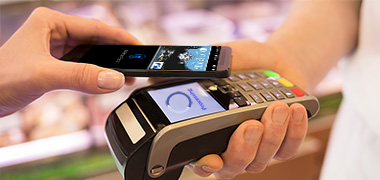
Pay at the register with your mobile phone. Quick, easy and secure. Learn more.
Online Banking allows you to view your accounts and conduct online transactions with your PC or laptop and an internet connection. The mobile app gives you equal access via your phone or tablet, so you can bank while you're away from your home. Mobile allows you to deposit checks with your phone and use touch ID or facial recognition.
- Select the account for which you’d like a transaction history.
- In the Transactions panel, select the small down arrow at top.
- Choose a date range.
- Choose from file types (.csv, .txt, .ofx, .qbo, .qfx)
- Select the download button.
Two-Factor authentication uses a unique one-time access code to verify identity and log on to digital banking. If you are unable to receive text (SMS) messages, you can choose to receive your access code via a phone call.
- On the verification code screen click Try another way located beneath the Verify button.
- Select Phone Call and click Next.
- You will receive an automated phone call that will provide your access code (have a pen and paper ready).
- Return to the verification code screen.
- Enter your access code and click Verify.
If you are still having trouble, contact O Bee to ensure we have the correct phone number on file.
You can add notes, tags, and images to any transaction in online or mobile banking.
- Click on any account.
- Click on Transactions (in mobile).
- Select the Transaction that you’d like to edit.
- Click on the appropriate item: Add Tags, Add Notes, Add Images.
- Follow the prompts to update the transactions.
- Close the transaction detail page or tap on Transactions in mobile.
All tags, notes, and images added to transactions will be available across all devices when you login in the future.
Click on the "hamburger" symbol (three lines ☰) at the top of the page, then click on Dashboard.
To lock your credit or debit card, first click on the account associated with the card. You will see the Card management tile on your dashboard. Choose the card you want to lock. Click on the green sliding button in the upper right. You will be prompted to confirm that you want to lock your card. You may unlock it at any time by clicking the sliding button again.
Mobile deposit is available for all checking accounts, but you must enroll in mobile banking first. Mobile deposit can only be done through a mobile device or tablet. There is no fee for mobile deposits.
- Log in to mobile banking.
- Select Deposit from the blue tiles.
- In the Deposit checks window select the account to deposit to and enter the check amount.
- Tap Capture Check (Be sure to sign the back of your check “For mobile deposit only at OBCU”).
- Take a picture of the front of the check and tap continue.
- Take a picture of the back of the check and tap continue.
- Check the information and tap Submit.
To report a lost or stolen card, first click on the account associated with the card. You will see the white Card management tile on your dashboard. Choose the card that was lost or stolen. Click on Report lost/stolen and follow the prompts. If your card was lost or stolen, you would be wise to lock it as well. See steps below.
You can make transfers between your O Bee accounts and other financial institutions once an external account has been verified.
To set up an external transfer on online
Click Transfers
Click +External Account to set up a new linked account
Confirm a deposit amount into your other financial institution
Finally, schedule a new one-time or recurring transfer
To set up an external transfer on mobile
Click the MENU icon in the upper left corner.
Click Settings.
Click External Account to set up a new linked account.
Confirm a deposit amount into your other financial institution.
Finally, schedule a new one-time or recurring transfer.
Please note: Transfers to another financial institution may take 2-3 business days to process.
- Choose the account for which you want to set up alerts.
- Choose the blue Settings tile.
- You will see a panel called Alerts and cards.
- Choose Balance or Transaction.
- Click on Add alert.
- Fill in the prompts as you wish.
- Select Add alert.
- From the dashboard, click the profile circle in the upper right corner.
- Choose Settings.
- In the General panel, choose User alerts.
- Choose from a selection of options, password change, email address change, etc.
- Hit the green toggle button on the right to turn on and off alerts.
If you don't remember your login credentials, you can recover your account by going through the Forgot? password steps. If you need more help, please contact us.
Recent changes to Safari cause the cookie setting to block online banking sign-in. To work around this, you can use a different browser, or disable cookie detection in Safari. Here’s how:
- Within the Safari menu, click “preferences” and navigate to the “privacy” tab across the modal that pops up.
- Make sure “Prevent cross site-tracking” and “Block all cookies” are unchecked.
Two-Factor Authentication is a security measure that allows you to request a one-time access code to login to online and mobile banking. The code attaches an added layer of security in addition to your unique username and password. This security measure helps to verify you and better protect your credentials and the accounts you can access.
You should retain the check for seven days after the deposit has posted to your account. After that time, you may shred it.
Select the account you’d like to view
View the Transactions panel to see all account activity
Credit scores are only available for Members with a loan or a credit card on their account.